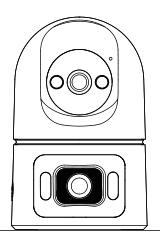
On a table
Place the camera on a desk or table. Check the view in Emanta and adjust its position.
PC52 One-Touch Call

iOS 15.1+ or Android 7.0+


Have your Wi-Fi password ready. Turn on Bluetooth.
Follow the illustrated steps below. A setup video is not available yet.
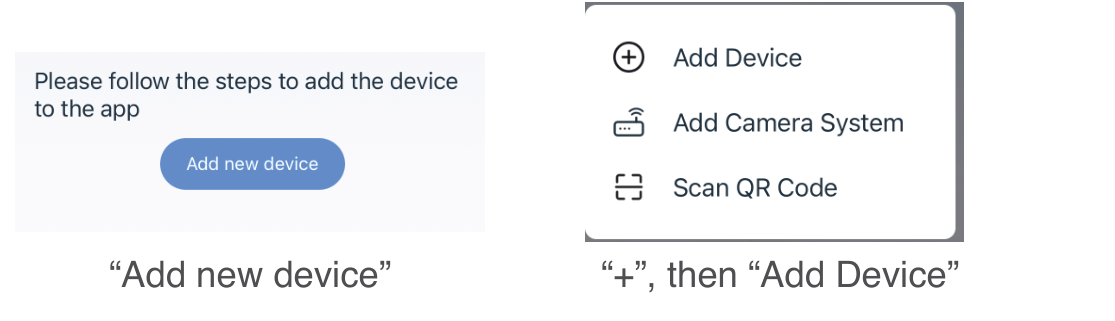
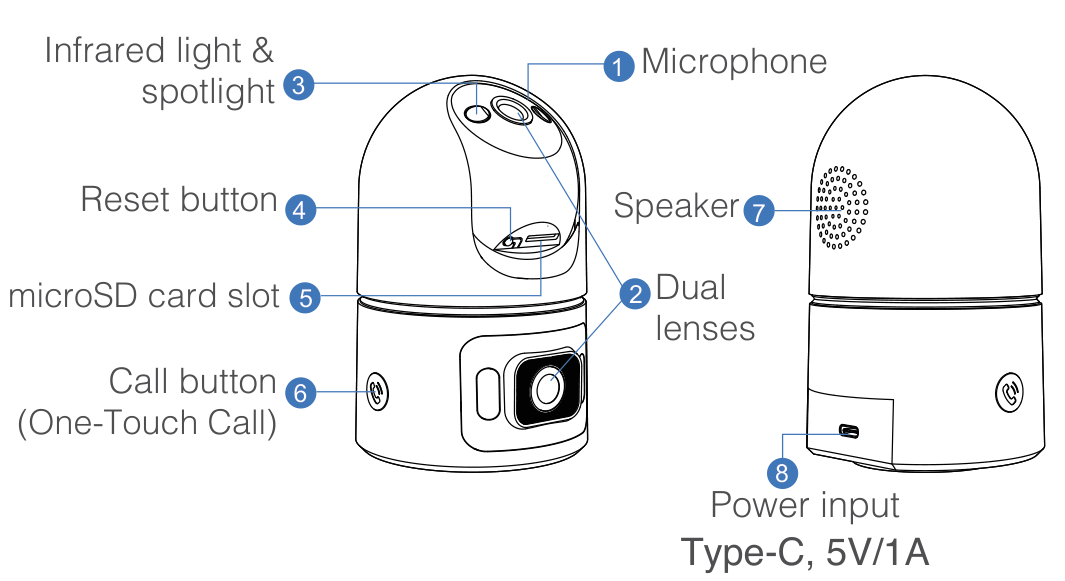
Keep the camera powered on. Tilt its head upward and hold RESET near the neck for 5–8 seconds. Add the camera to Emanta again.
Check the power cable and DC 5 V / 1 A adapter. Test another device on the same Wi-Fi. Unplug the camera, remove any microSD card, reconnect power and check again. If needed, reset and repeat setup or test another Wi-Fi network.
Contact us via Live Chat or email for help connecting your camera.
Choose a tabletop position or follow the mounting steps.
Place the camera on a desk or table. Check the view in Emanta and adjust its position.
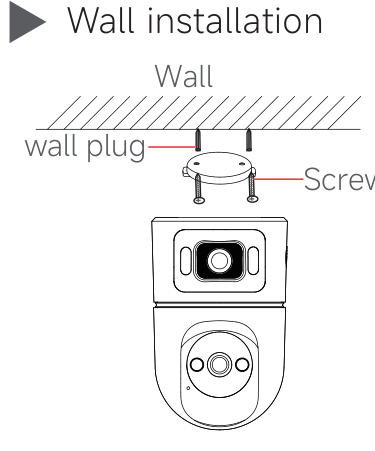
Keep the camera away from rain and moisture. Use a DC 5 V / 1 A USB-C power supply. Do not open the covers.
Card not included. Format the microSD card before use. Formatting erases its files.
In Emanta, go to “Me” → “My Shares”. Select the camera and use “Share” to invite another registered user.
Add the camera to Emanta first. In Alexa, open “More” → “Skills & Games”, search for “Emanta” and tap “ENABLE TO USE”. Link the Emanta account containing your camera, then tap “CLOSE” → “DISCOVER DEVICES”. Google Home is not supported.
The One-Touch Call button is on the front of the camera. Tilt the head upward to access RESET and the microSD card slot.
Get help with your device setup.